
Import Gmail Takeout to Outlook sounds straightforward, but the moment you unzip that archive and meet a pile of MBOX files, the roadblocks show up—Outlook (especially on Windows) prefers PST, manual workarounds get messy, and things like folder hierarchy, attachments, inline images, and non-English characters are easy to break. Add in the time sink of trial-and-error and you’ve got a stressful, error-prone project instead of a simple move.
That’s exactly why we recommend Mail Extractor Pro. It’s a purpose-built Gmail MBOX → PST converter that keeps structure and metadata intact while cutting the busywork down to a few guided clicks. Whether you’re landing in Outlook for Mac or Windows, you get dependable results without wrestling with scripts or temporary mail clients—just a clean, accurate handoff from your Gmail Takeout to Outlook.
What is Gmail Takeout (and what you actually get)?
Import Gmail Takeout to Outlook starts with understanding what Google actually gives you: a zipped Gmail Takeout archive that contains one or more .mbox files (your mail) plus small JSON files for things like contacts or settings. An MBOX is a mailbox container where messages—and their attachments—are stored one after another in a single file.
- What’s inside the MBOX: full messages, attachments, timestamps, sender/recipient info, and Gmail labels (stored as metadata).
- What’s not Outlook-friendly: Outlook—especially on Windows—works best with .pst files, not .mbox, which is why direct import usually fails or loses structure.
- Why this matters: Gmail labels don’t equal Outlook folders one-to-one; without proper conversion, you can end up with missing subfolders, broken inline images, or garbled Unicode/emoji.
That’s the gap a converter fills: translating MBOX + Gmail labels into a clean PST + Outlook folders structure so you can import without data loss or manual cleanup later.
The pitfalls of manual methods
Import Gmail Takeout to Outlook via manual workarounds looks simple until you hit the real-world snags: extra apps, messy folder mapping, and fragile steps that don’t scale.
- Multi-step detours: Apple Mail/Thunderbird “bridge,” IMAP drag-and-drop, or EML exports add hours and many points of failure.
- Broken structure: Gmail labels don’t translate cleanly—sub-labels flatten, categories vanish, and folder order changes.
- Lost details: Read/unread states, stars, timestamps, and conversation threading can go missing or misalign.
- Attachments & inline images: Files detach, inline images turn into blanks, or HTML mails degrade into plain text.
- Language/character issues: Non-English text, emoji, and RTL scripts can garble without proper Unicode handling.
- Duplicates & partial imports: Re-tries often create duplicates; timeouts and rate limits leave gaps you won’t spot immediately.
- Size headaches: Large archives choke manual tools; Outlook can slow or hang if you end up with oversized, monolithic data files.
- No clear audit trail: When something breaks, there’s little logging to tell you what failed—or how to safely resume.
Bottom line: manual paths are fine for a tiny test, but risky for a full mailbox. A purpose-built converter keeps structure, metadata, and attachments intact—without the guesswork.
Why Mail Extractor Pro is the best way to import Gmail Takeout to Outlook
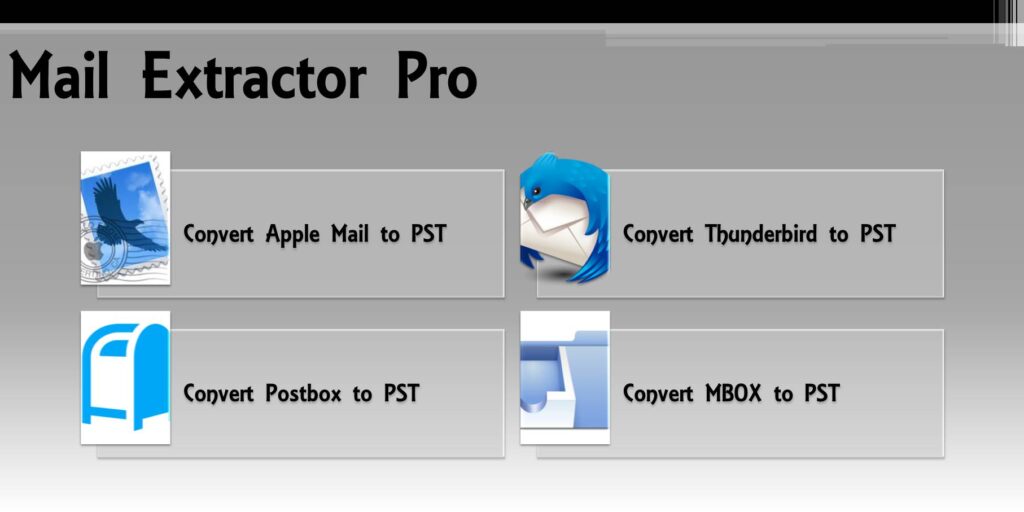
Converting Google Takeout to PST becomes predictable and drama-free with Mail Extractor Pro because it converts Gmail Takeout MBOX files into clean PST files while preserving everything that matters.
- True structure preservation: Gmail labels map neatly to Outlook folders/subfolders—no flattening, no chaos.
- Attachments & inline images intact: Keep original formatting, embedded media, and file names.
- Accurate metadata: Dates, sender/recipient, read/unread, and flags stay correct for reliable search and sorting.
- Rock-solid Unicode handling: Non-English text, emoji, and RTL scripts display properly.
- Built for big archives: Batch processing and optional PST splitting keep Outlook responsive after import.
- Selective conversion: Exclude newsletters, large folders, or duplicates before you convert—less clutter, faster results.
- Local & private: Converts offline on your machine; no server uploads, no account access required.
- Clear progress & logs: See exactly what was converted, so audits and retries (if needed) are straightforward.
- Mac & Windows friendly: Produce PSTs you can import into Outlook on either platform with the same consistent results.
Bottom line: you get a precise PST that mirrors your Gmail Takeout—saving hours of cleanup and eliminating the usual surprises.
4-Click Workflow: Import Gmail Takeout to Outlook with Mail Extractor Pro
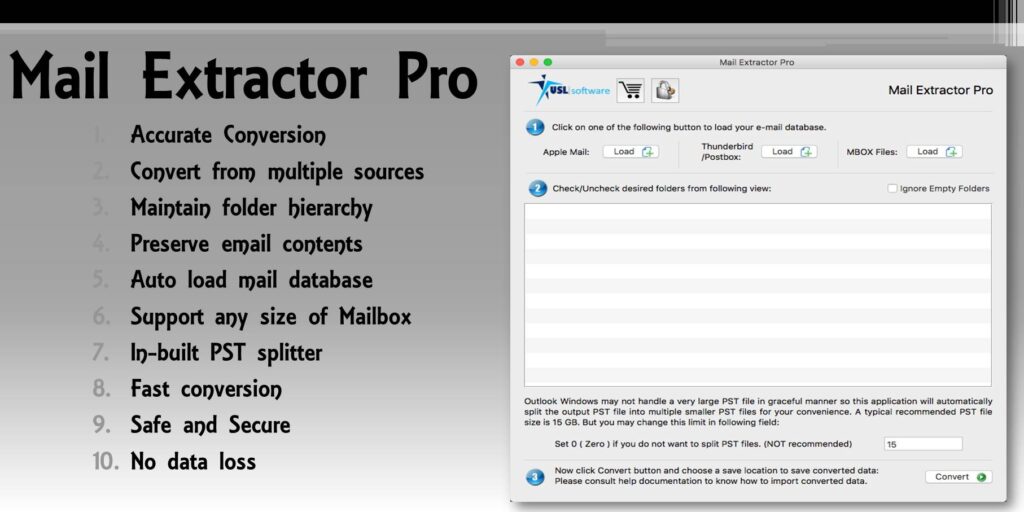
Import Gmail Takeout to Outlook in just four guided clicks—simple, fast, and repeatable.
- Select your Takeout folder
Point Mail Extractor Pro to the unzipped Gmail Takeout location (Folder containing MBOX files). - Review & refine
Deselect newsletters, spam, or any folders you don’t want converted to keep your PST lean. - Choose output options
Pick the PST destination and (optionally) enable PST splitting for large archives to keep Outlook speedy. - Convert & locate
Click Convert. When done, hit Open Converted to jump straight to your ready-to-import PST.
Pro tip: Unzip your Takeout first and keep the original archive as a safety backup until you’ve verified the imported mail in Outlook.
Importing into Outlook—Mac and Windows
Import Gmail Takeout to Outlook finishes with a quick PST import inside Outlook—here’s how to complete it on both platforms.
Outlook for Windows
- Open Outlook → File → Open & Export → Import/Export.
- Choose Import from another program or file → Outlook Data File (.pst) → Next.
- Browse to your converted PST, pick Do not import duplicates (recommended), and click Next.
- Select the mailbox/folder destination and hit Finish.
Tip: If you created multiple PSTs (size-split), import them one at a time for smoother indexing.
Outlook for Mac
- Open Outlook (Classic/Legacy mode) → File → Import.
- Select Outlook for Windows archive file (.pst) → Continue.
- Browse to your PST and start the import; your folders will appear under On My Computer or your profile.
Tip: If you’re using the “New Outlook” interface and don’t see PST import, switch to Classic Outlook, perform the import, then switch back. After import, give Outlook time to index so search works perfectly.
Best Practices for a Smooth Migration
Import Gmail Takeout to Outlook works best when you prep both your Takeout and Outlook environment for a clean handoff.
- Tidy labels first: In Gmail, simplify or merge rarely used labels before exporting so they map to fewer, clearer Outlook folders.
- Unzip cleanly: Extract the Takeout archive to a local drive (not a network share) and keep the original ZIP as a backup.
- Convert selectively: Exclude newsletters, spam, or bulky folders during conversion to keep your PST lean and Outlook snappy.
- Split big PSTs: Enable PST splitting for large archives to avoid oversized data files and improve Outlook performance.
- Pilot run: Convert a small set first, import it, and verify folders, timestamps, and attachments—then run the full job.
- Mind storage & power: Ensure plenty of disk space and keep your device on AC power during conversion/import.
- Let indexing finish: After import, give Outlook time to rebuild its search index before judging search speed or completeness.
- Archive safely: Keep your original Takeout and converted PSTs until you’ve confirmed everything looks perfect.
FAQs: Import Gmail Takeout to Outlook
Import Gmail Takeout to Outlook raises a few common questions—here are quick, clear answers.
Conclusion: The fast lane to Outlook on Mac and Windows
Import Gmail Takeout to Outlook doesn’t have to be tedious—Mail Extractor Pro turns a messy, error-prone chore into a predictable four-click workflow that preserves folders, metadata, attachments, and Unicode across both Outlook for Mac and Windows. Test a small subset, confirm everything looks perfect, then run your full archive with options like selective conversion and PST splitting for a clean, speedy import.
Ready to make the jump without the drama? Try the free trial of Mail Extractor Pro and move from Gmail Takeout to Outlook with confidence.